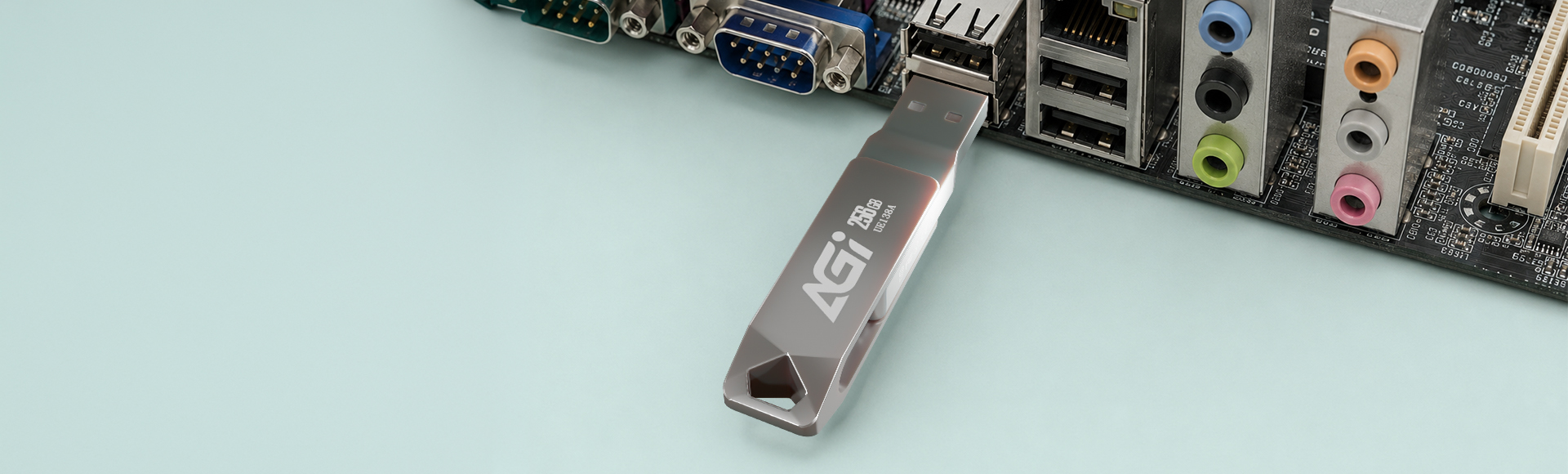
UE138A 隨身碟
金屬質感.雙向兼容.隨插隨用
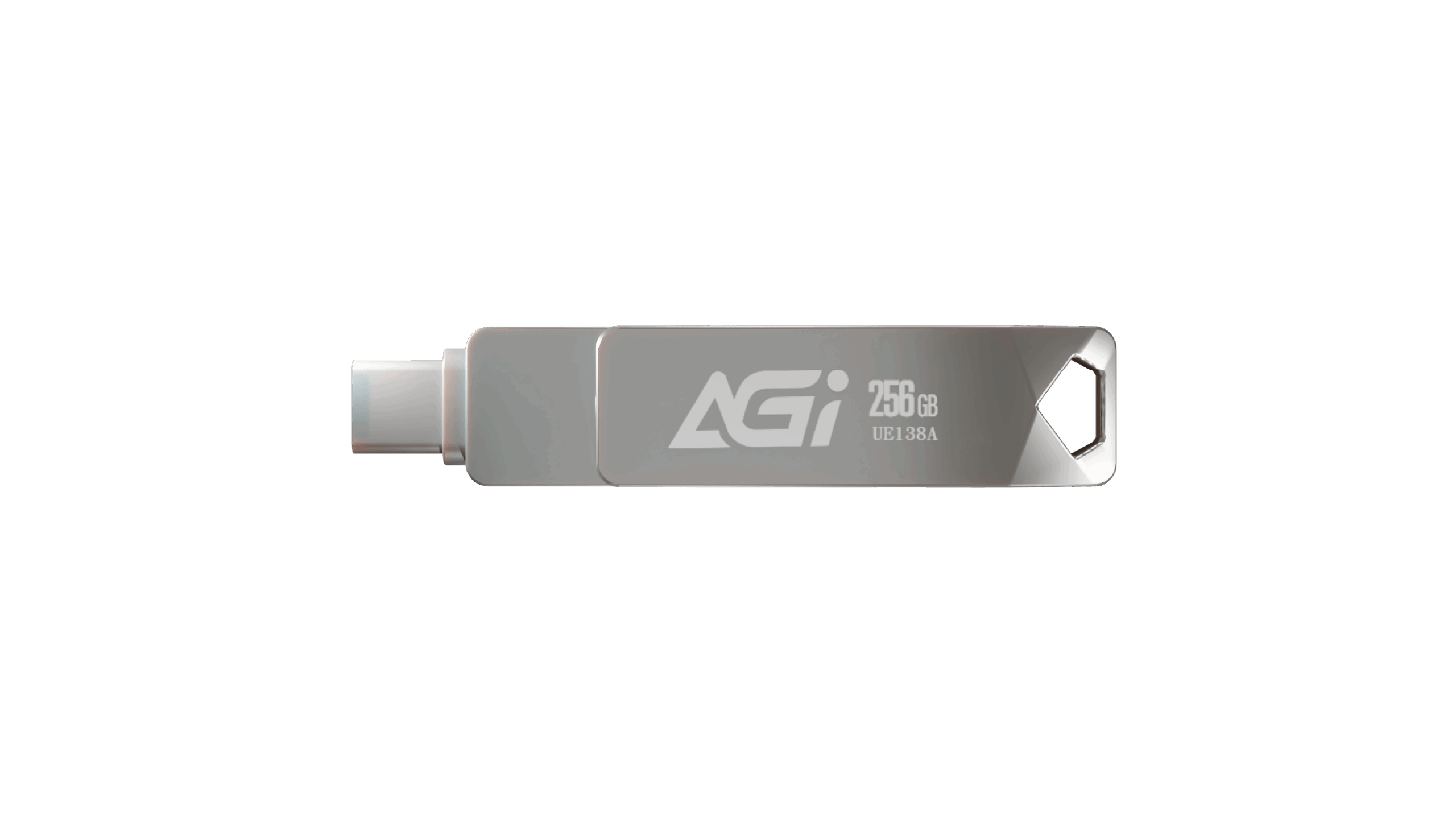
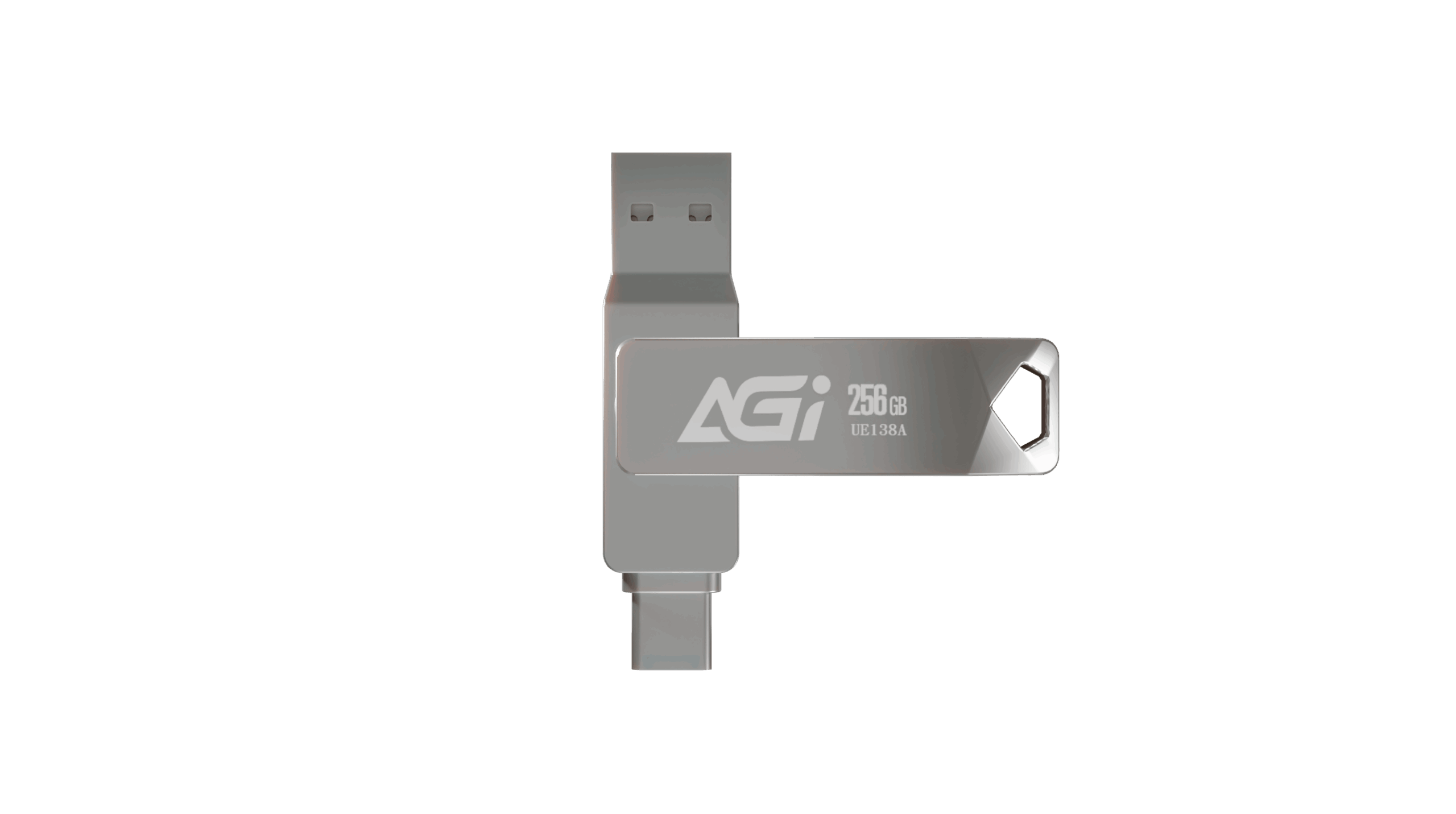
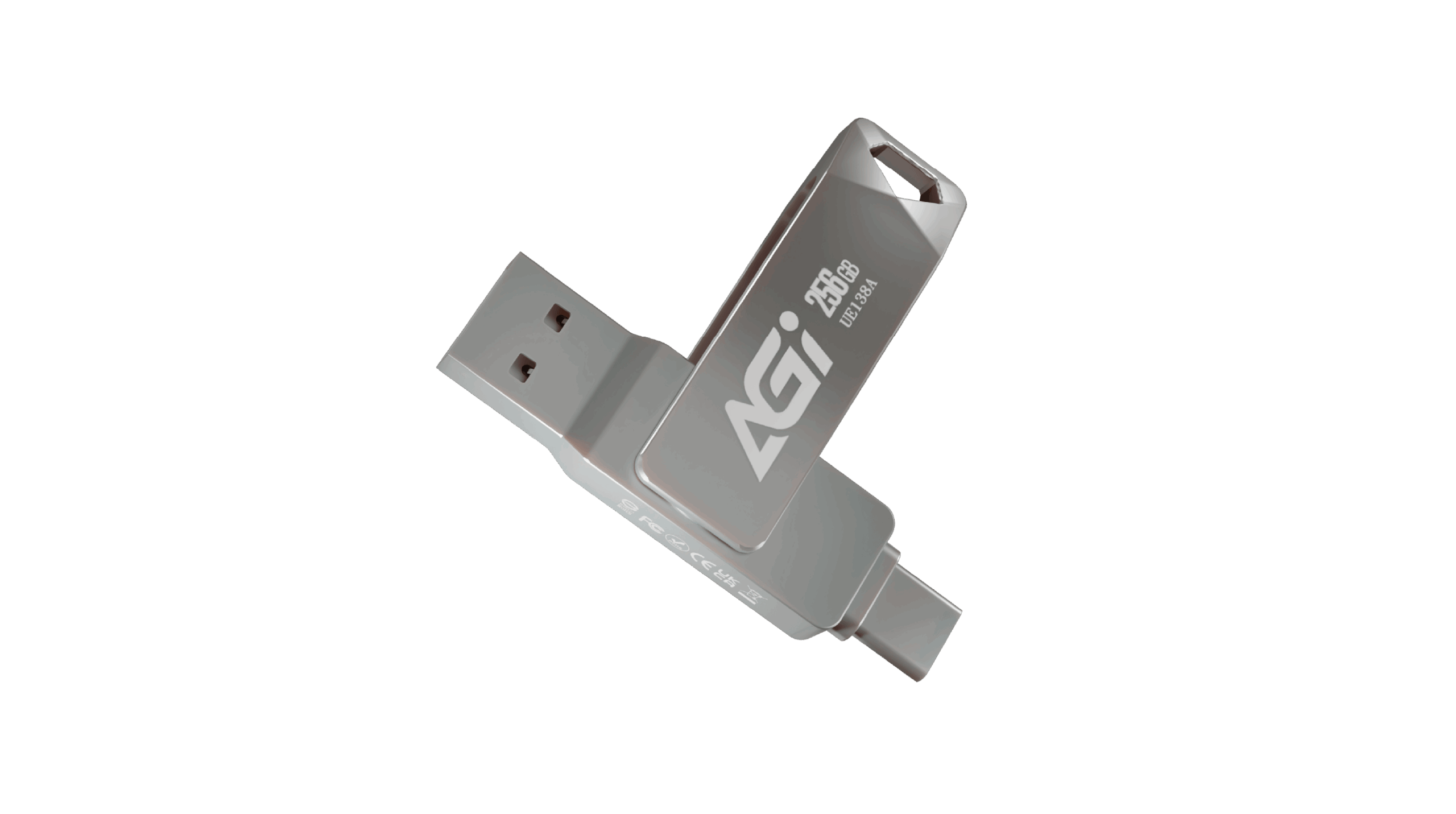
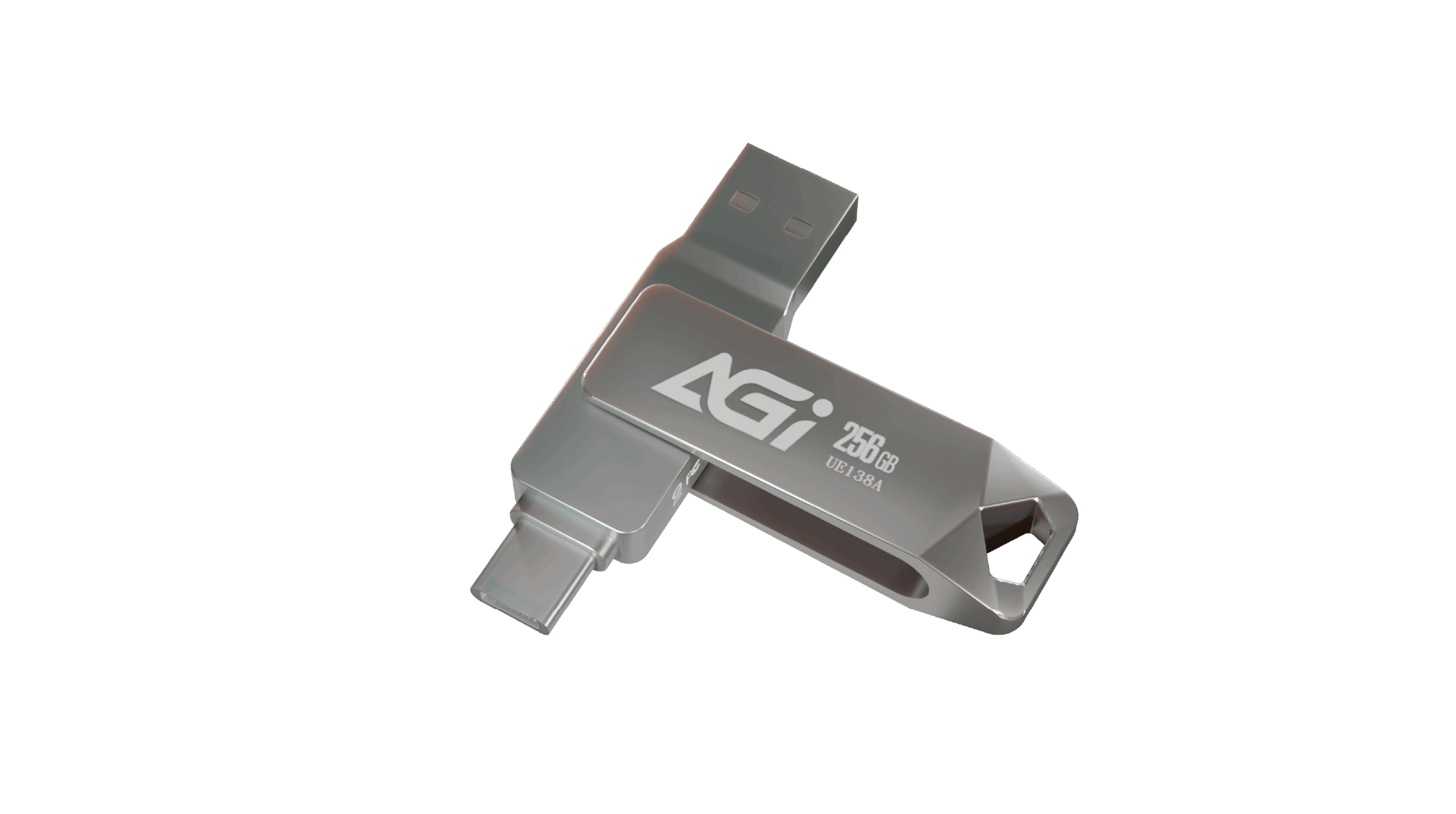
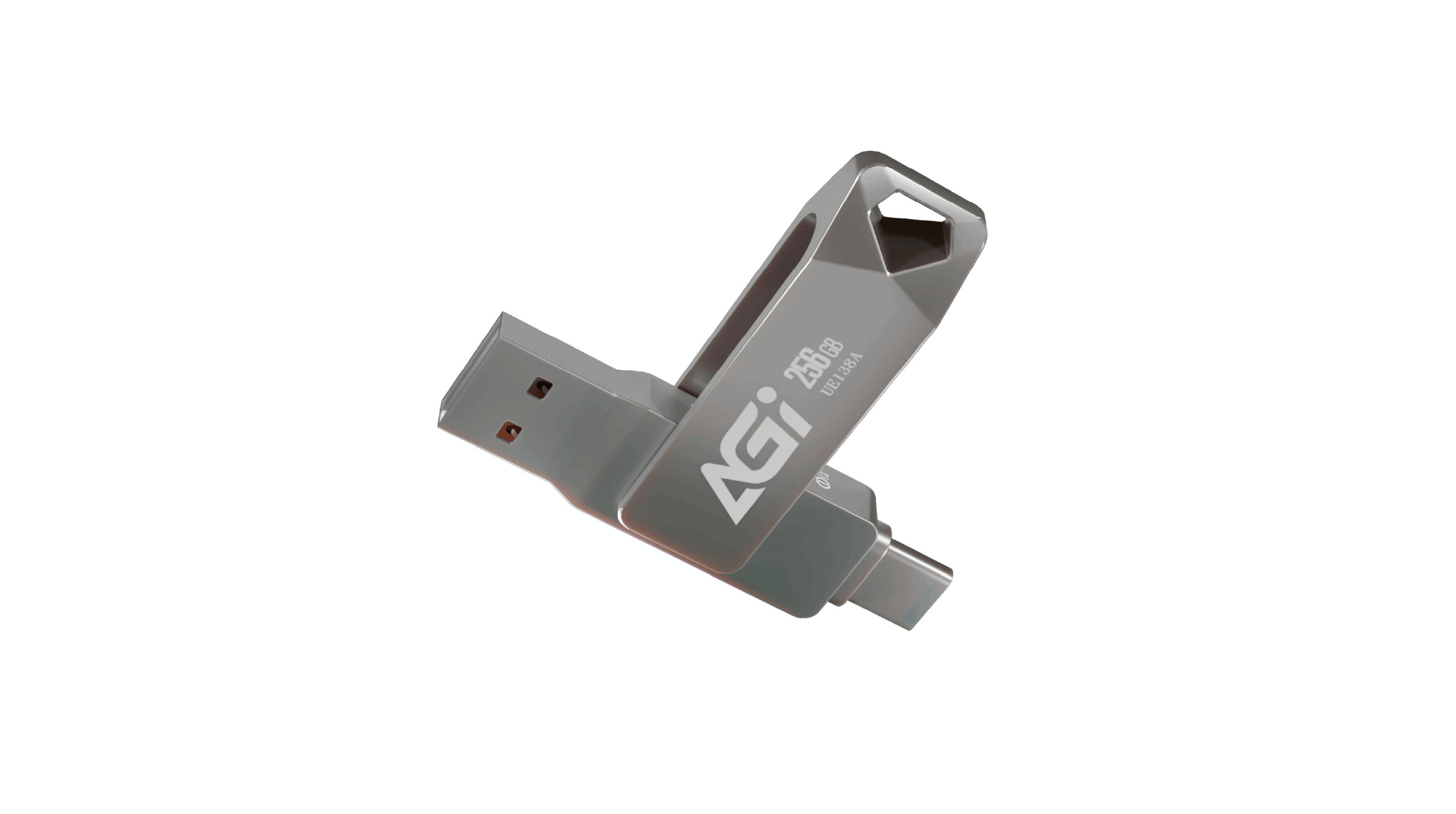
UE138A 隨身碟
KEY FEATURES
- ➠ 鋅合金外殼
- ➠ 兼容Type A及Type C
- ➠ 無需轉接

Dual Connector USB-A/USB-C

Compact Size

To-go
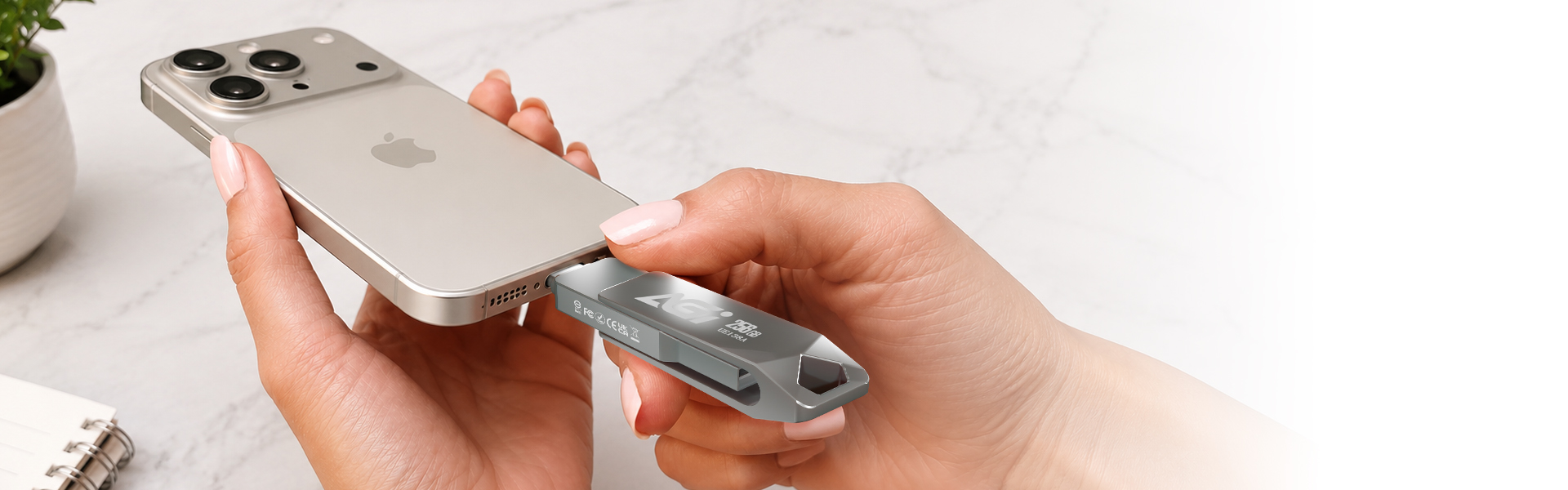
質感設計
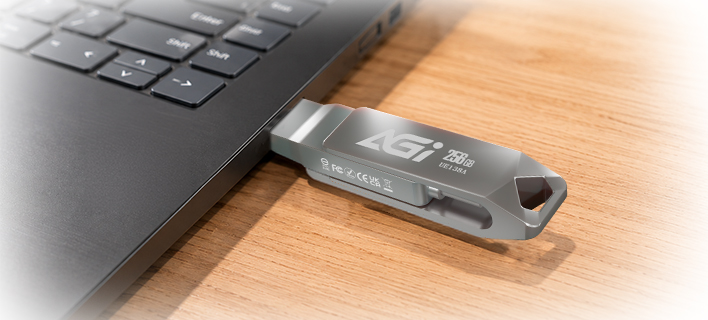
- 鋅合金的霧面設計,不僅質感滿分,其雙向接頭設計更能兼容於各種裝置,隨插隨用
跨界傳輸,無需轉接
- 同時搭載 Type-A 與 Type-C 接口,輕鬆在手機、平板與電腦間跨界備份。無需任何轉接頭,即刻享受高效穩定的隨插即用體驗。
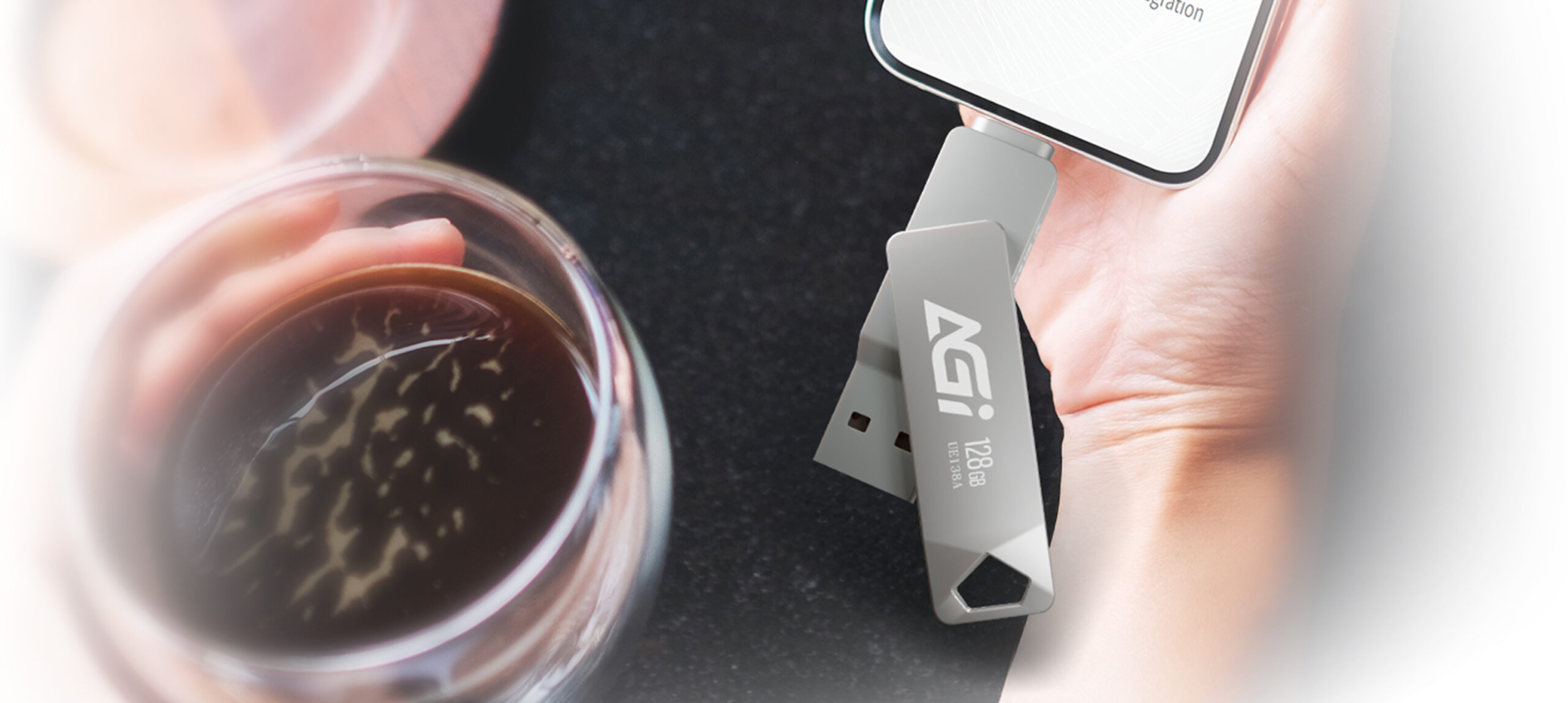
一支雙介面,跨裝置更自由
- Type-A × Type-C 雙接頭設計,電腦、手機、平板隨插即用,資料傳輸更方便。
Specifications
容量
32GB / 64GB / 128GB / 256GB
系統要求
Windows XP, Vista, 7, 8, 10, Mac OS X 10.10 and Linux Fedora version 15 or later
介面
USB 3.2 Gen1
材質
Zinc Alloy
最高讀寫速度
120MB/s
尺寸(L x W x H)
63 x 14.2 x 10.3 mm
重量
20g



Product FAQ
請檢查以下項目:
1. 硬體連接: 請確認資料線、電源線是否接妥,且固態硬碟已正確穩固地插入主機板插槽中。
2. 系統初始化: 在「開始」圖示上按一下右鍵 > 選擇「磁碟管理」> 找到未配置的 SSD > 在上方按一下右鍵 > 選擇「新增簡單磁碟區」以初始化該硬碟。
Windows 11, Windows 10, and modern Linux distributions include native support for PCIe NVMe drives and can be installed directly. Please ensure your motherboard’s BIOS is updated to the latest version and configured to UEFI mode. If the SSD is not detected during the Windows installation process, you may need to download and load the specific storage controller drivers (such as Intel VMD/RST) provided by your motherboard or laptop manufacturer. For further assistance, please refer to the following link or contact Microsoft: https://support.microsoft.com/
請嘗試以下步驟來解決此問題:
步驟 1: 關閉電腦並拔除其他所有的儲存硬碟,僅保留要安裝系統的目標 SSD 連接在主機板上。
步驟 2: 進入主機板 BIOS,還原為預設設定,並確保已開啟 AHCI 與 UEFI 模式。儲存設定後離開。
步驟 3: 重新啟動並進入作業系統安裝程式。在選擇硬碟的畫面中,刪除目標 SSD 上的所有現有磁碟區(分割區),然後繼續完成安裝。
實際效能可能會因您的系統硬體、軟體環境,以及SSD是否作為開機碟(安裝作業系統)而有所差異。這些變動皆屬正常現象。