CE138 CFexpress Memory Card
Ultimate Speed for Pro 8K Cinematography
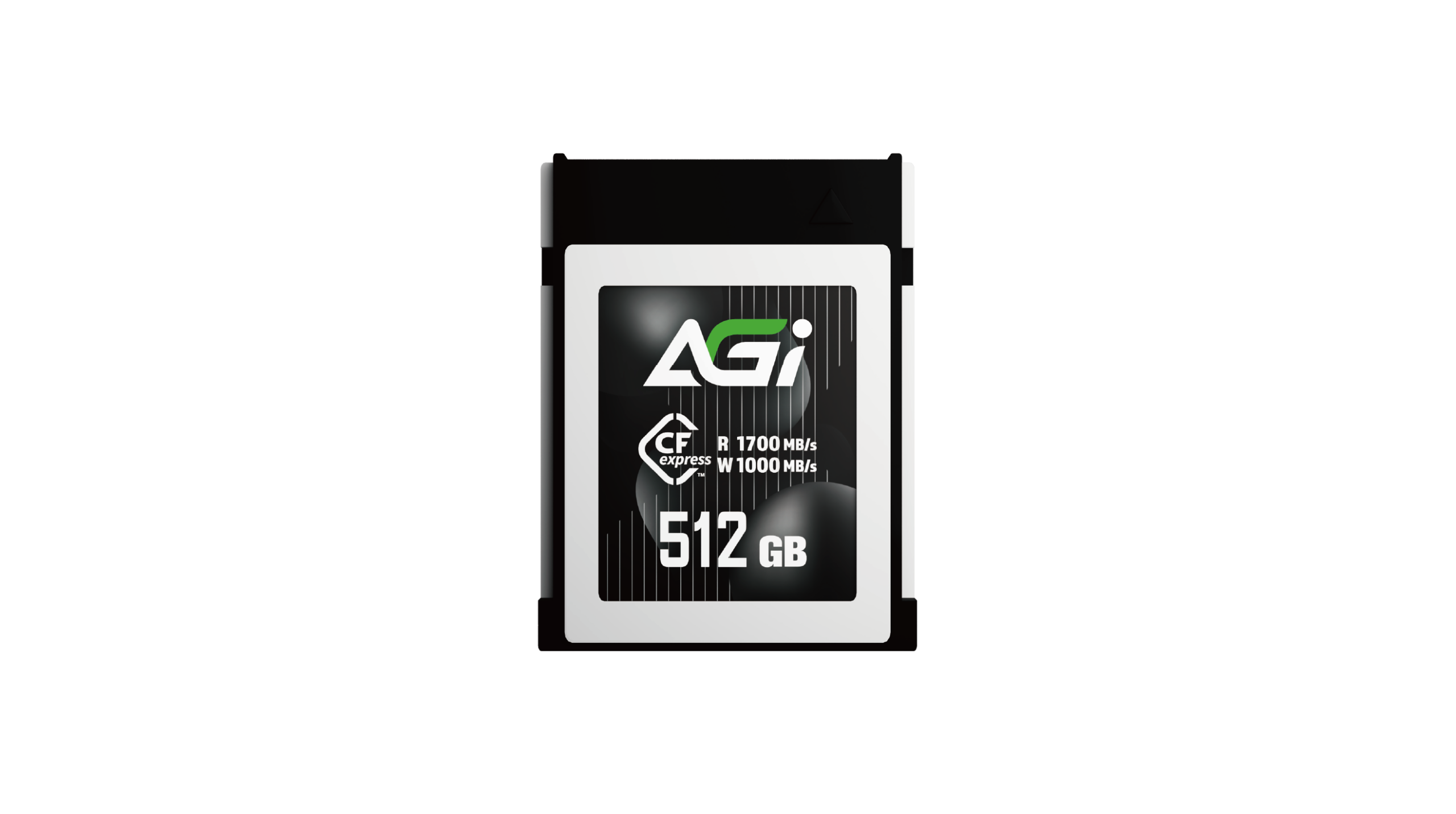
CE138 CFexpress Memory Card
KEY FEATURES
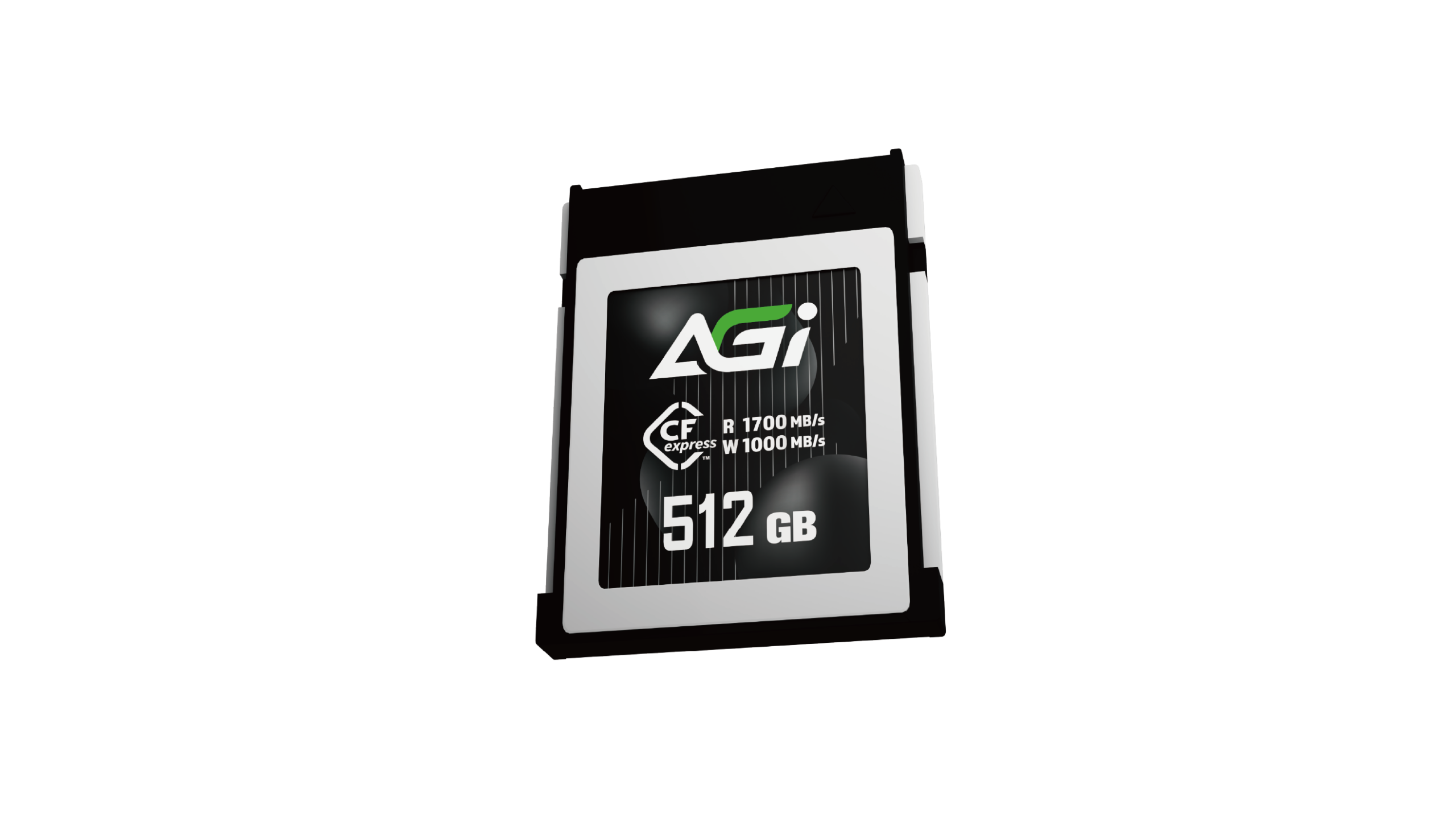
- Ultra-fast read/write speeds up to 1700/1000 MB/s
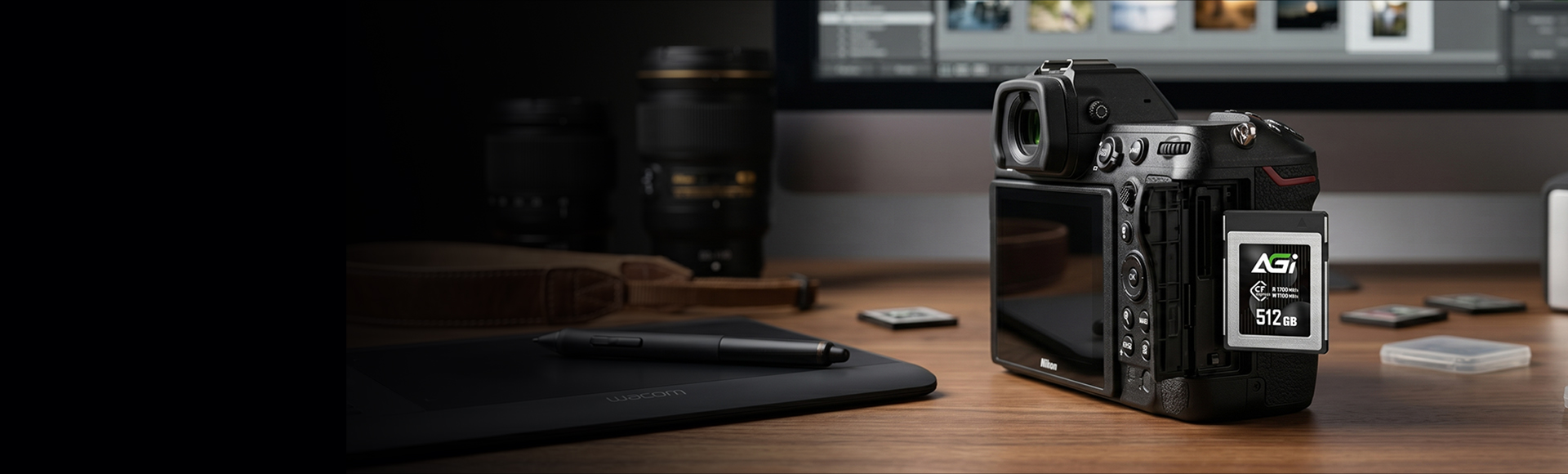
- Supports 8K UHD & Full HD high-resolution video recording
- Suitable for various photography equipment

8K UHD

Camera

Drop Resistant

1700 MB/s Read Speed: Zero-Lag Transfers
CE138 CFexpress Card
- Boasting an extreme 1700 MB/s speed, this card enables near-instant transfers of high-capacity assets. By significantly optimizing your backup workflow, it ensures a seamless transition from the field to the editing suite.
8K RAW Support: Capture Every Lossless Detail
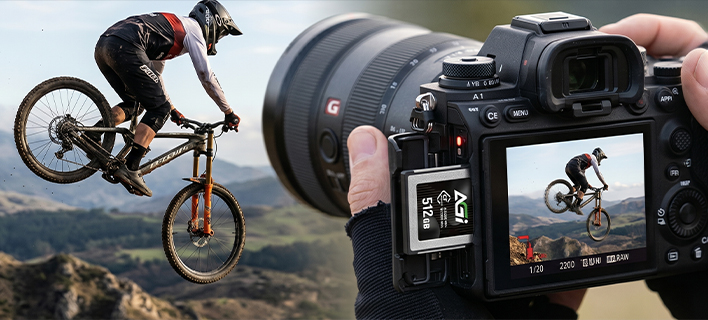
- Optimized for 8K+ RAW and high-speed burst shooting, ensuring zero frame drops during high-bitrate recording. It preserves every nuance of light and shadow, meeting the most demanding professional photography requirements.
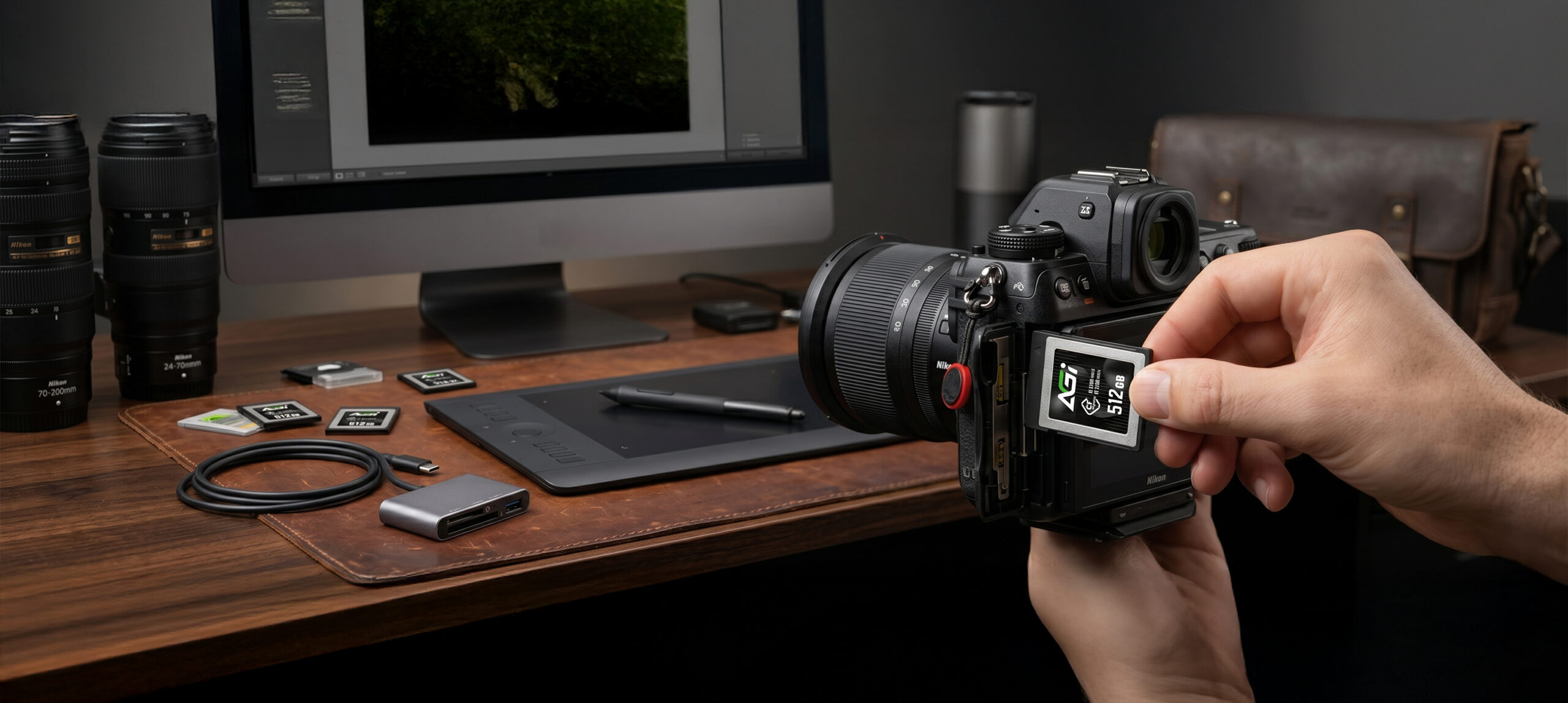
Flagship Device Compatibility: Unlocking Ultimate Potential
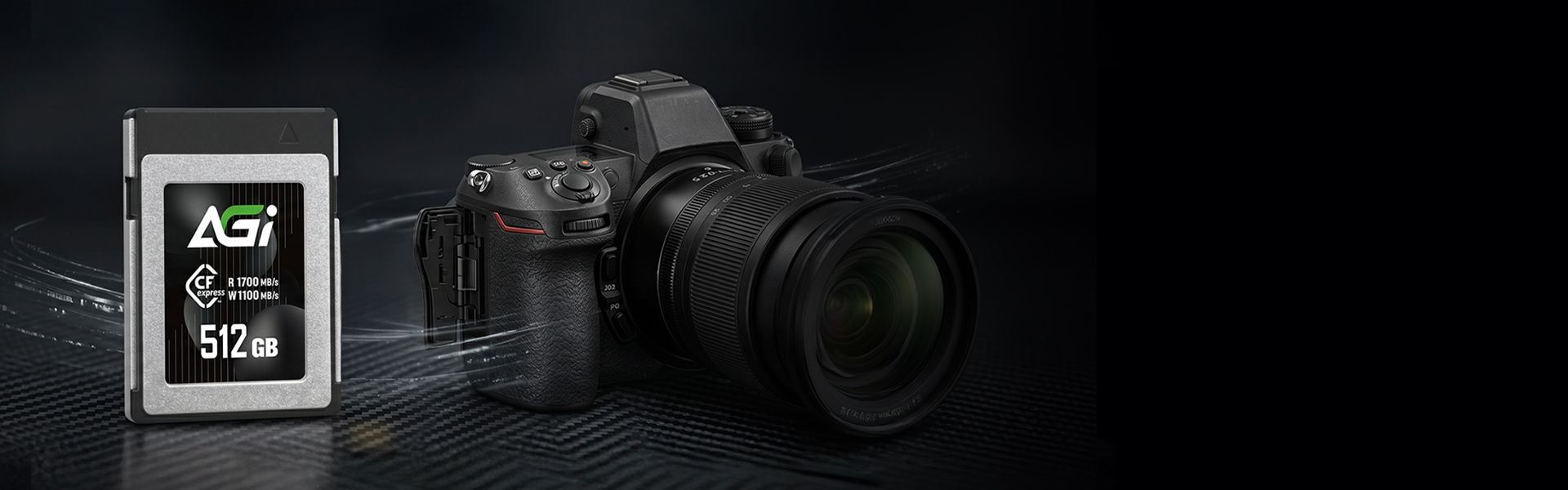
- Perfectly compatible with next-generation imaging systems, it maintains stable output for both high-speed burst shooting and dynamic video recording. It stands as the backbone of confidence for professional cinematic creation.
Rugged Structural Design: Guarding Your Critical Assets
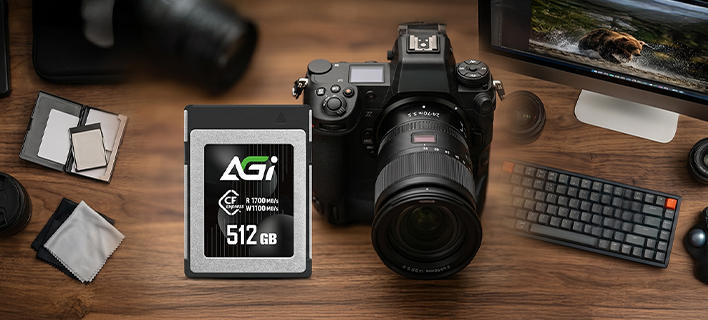
- The CFexpress professional interface features superior physical protection, ensuring high stability across diverse shooting environments and building a secure fortress for your data.
New Standards, New Experiences, New Speeds
- The TF338 adopts the microSD Express standard, utilizing the PCIe Gen3 x1 NVMe protocol to deliver performance that far surpasses traditional microSD cards.
- This next-generation architecture achieves high-speed read/write capabilities comparable to an SSD within a compact form factor. It not only boosts transmission efficiency but also unlocks an unprecedented speed experience for gaming and high-resolution imaging applications.
Specifications
Capacity
256GB / 512GB
Interface
PCIe Gen3x2
Dimensions (L x W x H)
38.5 x 29.6 x 3.8mm
Weight
7g
Read/Write(Max)*
R: 1700MB/s W: 256GB:500MB/s 512GB:1000MB/s
Operating Temp.
0°C ~ 70°C
Storage Temp.
-40°C ~ 85°C
Warranty
5 years limited

Product FAQ
Please check the write-protection switch on the side of the SD adapter. If it is set to “Lock,” simply slide it up to unlock it.
Please ensure the memory card is firmly inserted into the reader. Try plugging the card reader into a different USB port on your computer. If the issue persists, test the reader on another computer to see if it functions correctly.
Transfer speeds depend on your device’s hardware, including the card reader and USB port specifications. Additionally, the size and quantity of the files affect the speed; transferring a large number of small files is generally slower and more inconsistent than transferring a single large file.
Please try formatting using a different reader or device. If the issue persists, use the SD Formatter tool available at:
https://www.sdcard.org/downloads/formatter_4/
Speed classes (such as Class 10, U3, or V30) indicate the minimum sustained write speed of the memory card, which is crucial for video recording. For a complete breakdown of all standards, please refer to the official SD Association website: https://www.sdcard.org/developers/sd-standard-overview/speed-class/