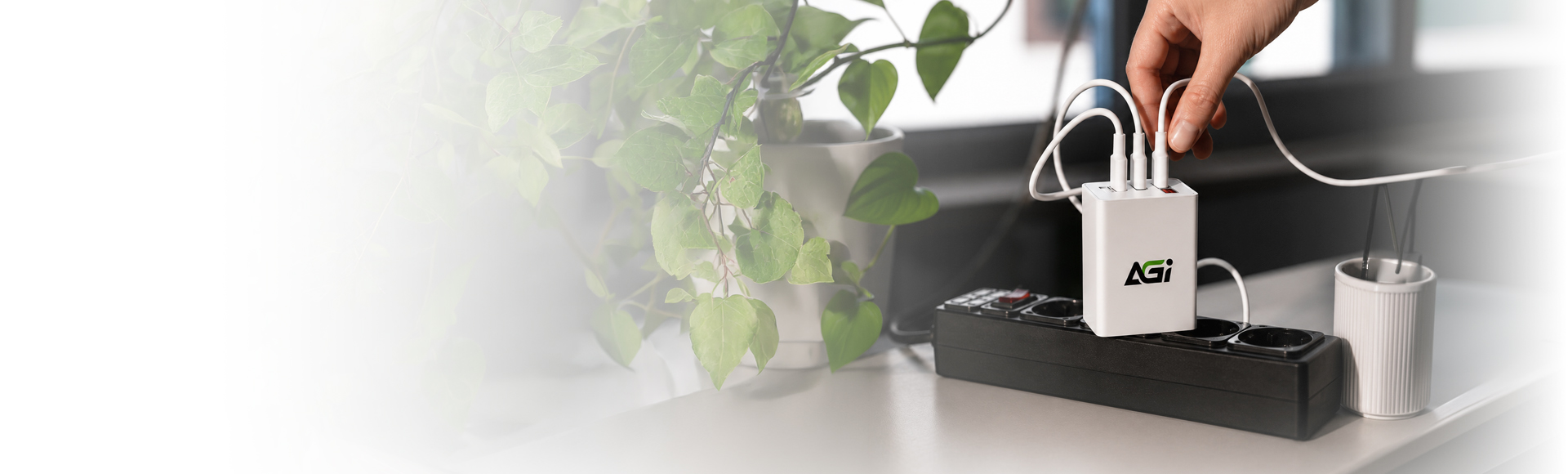
AP138 – 3合1 67W GaN 充電器
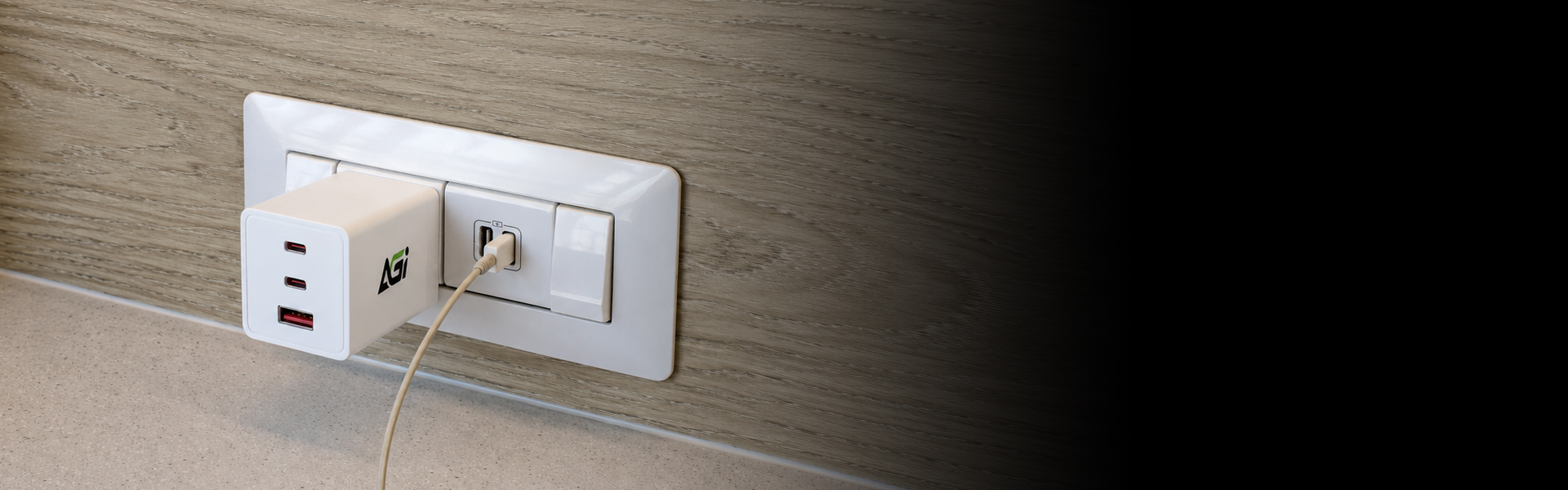
快充有力.簡化你的充電配置
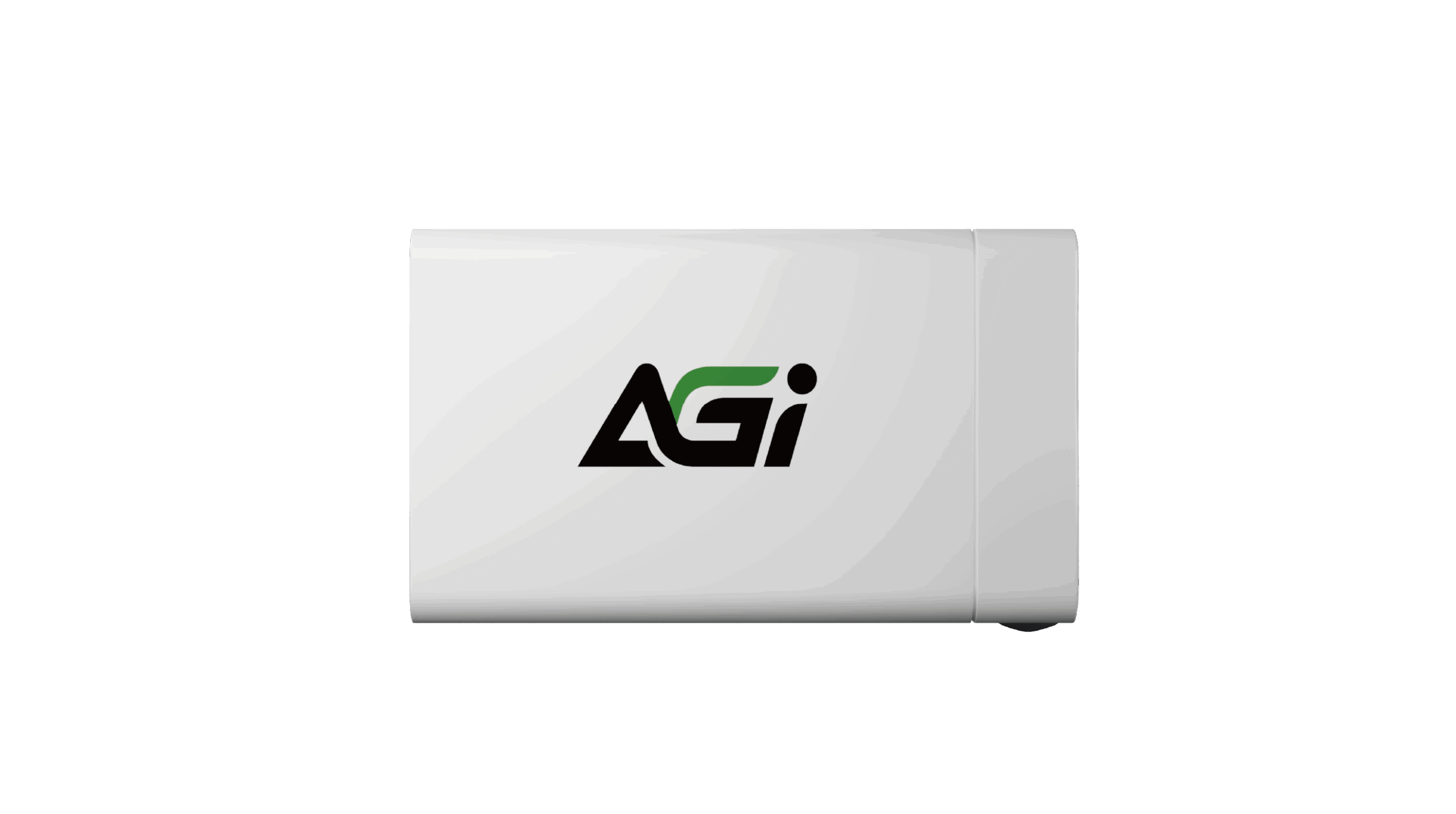
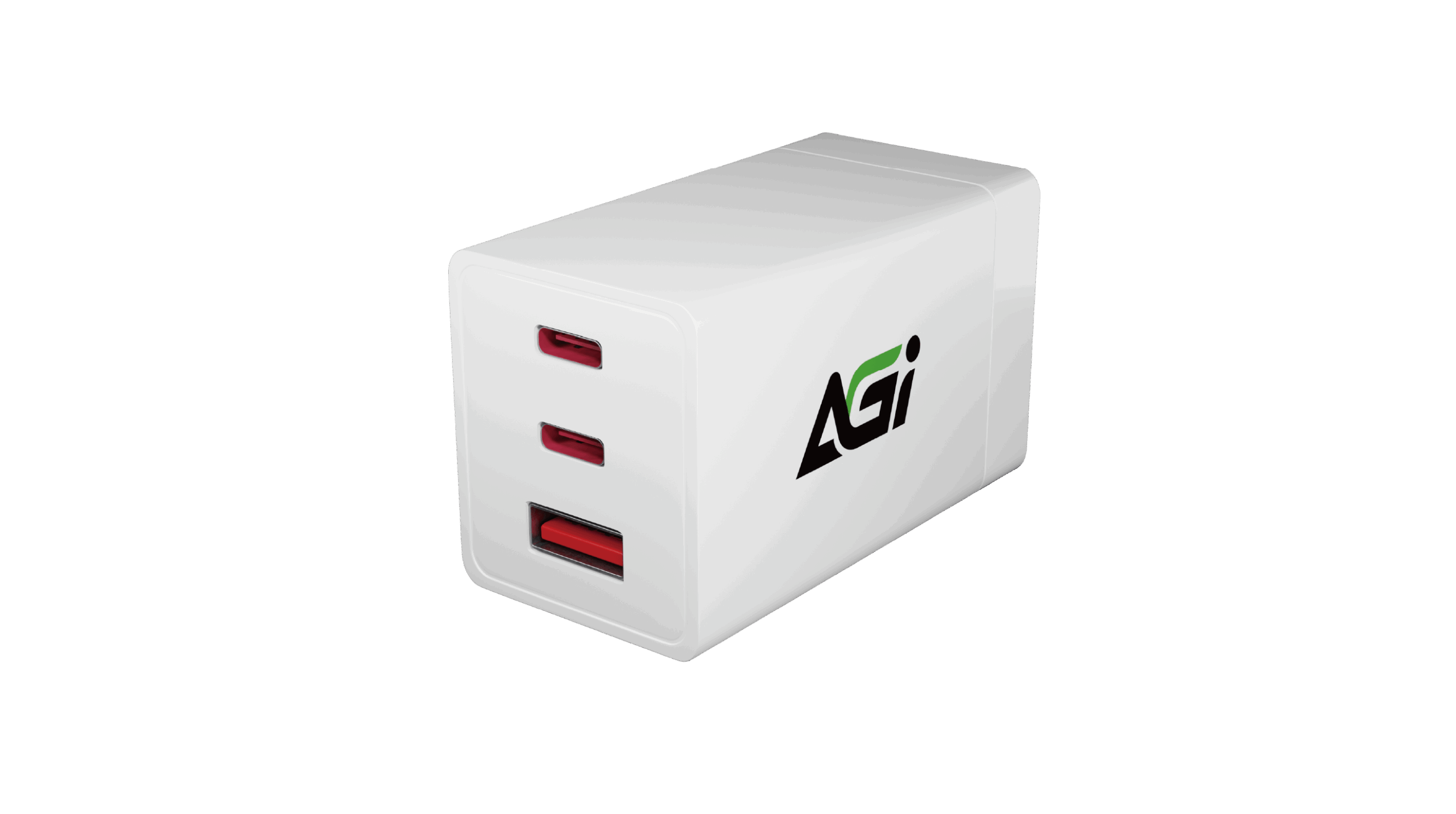
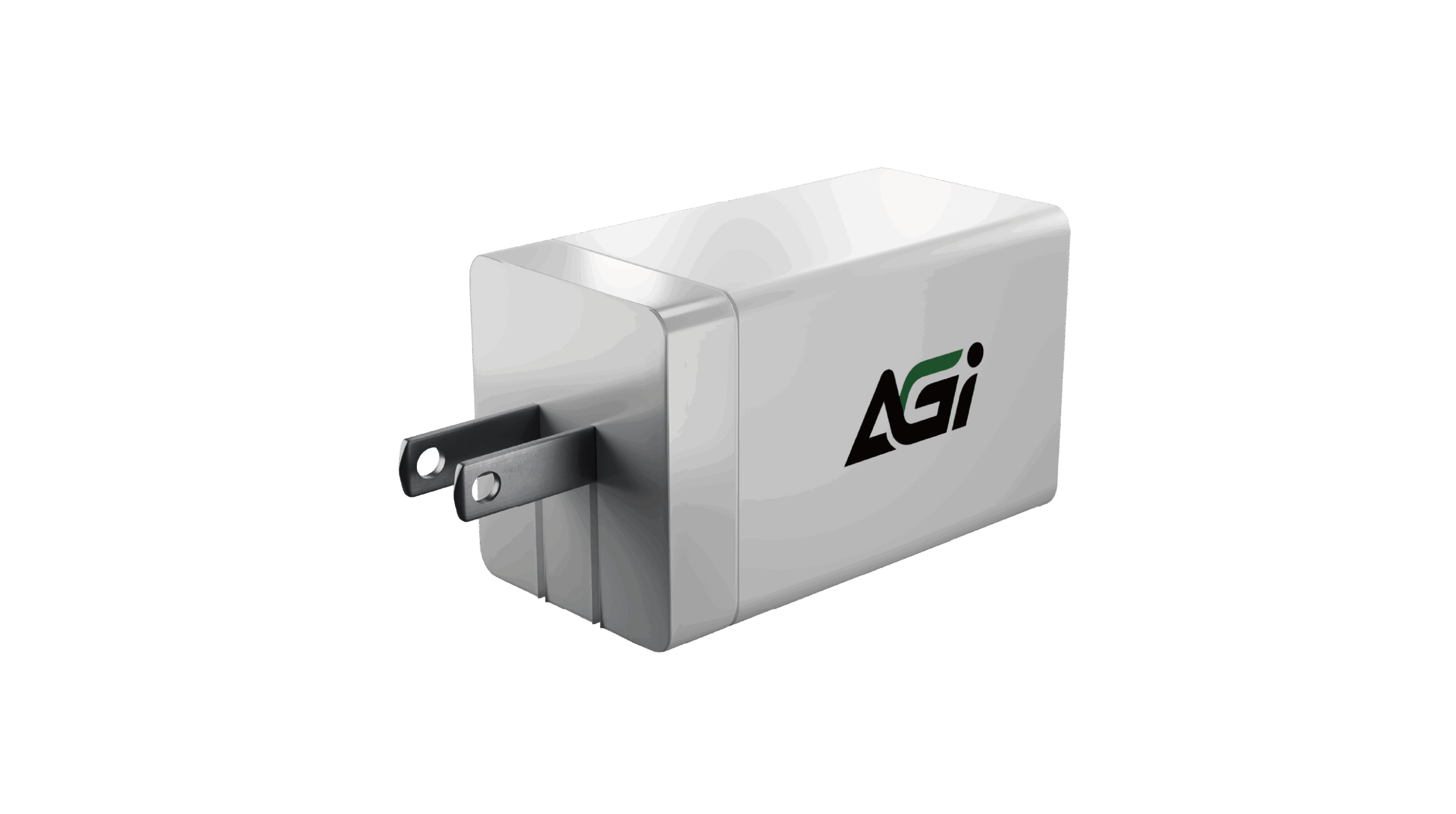
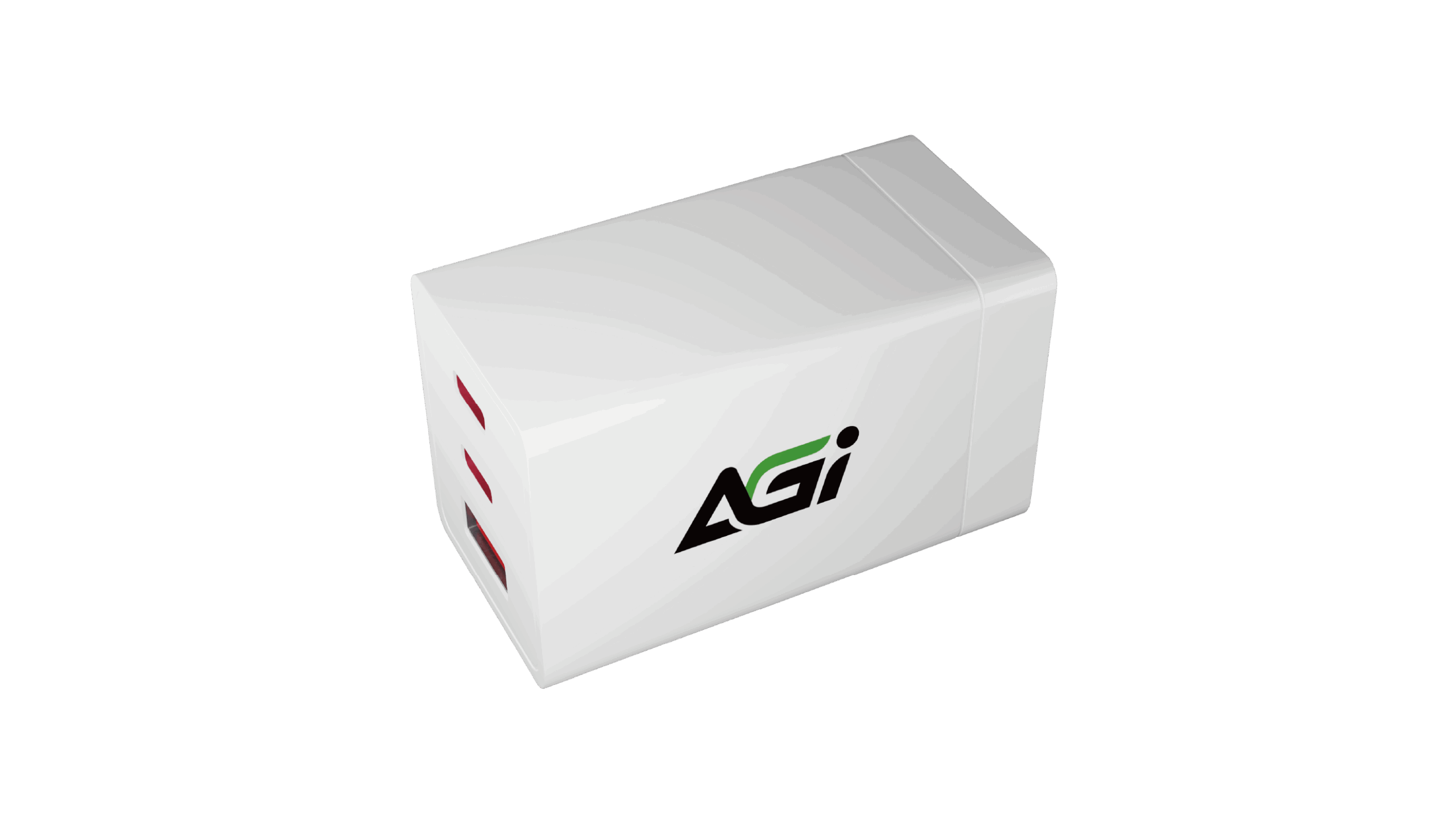
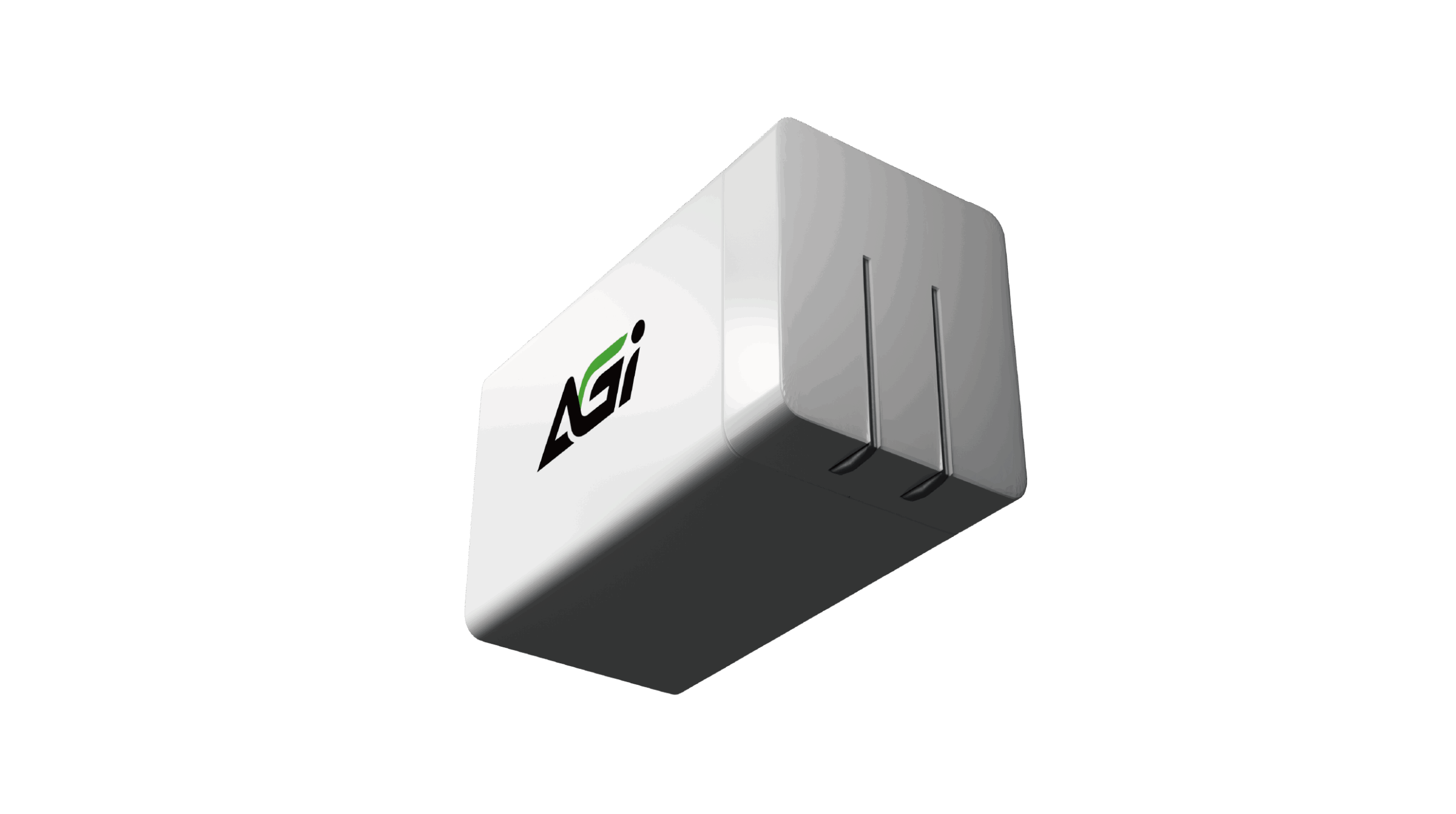
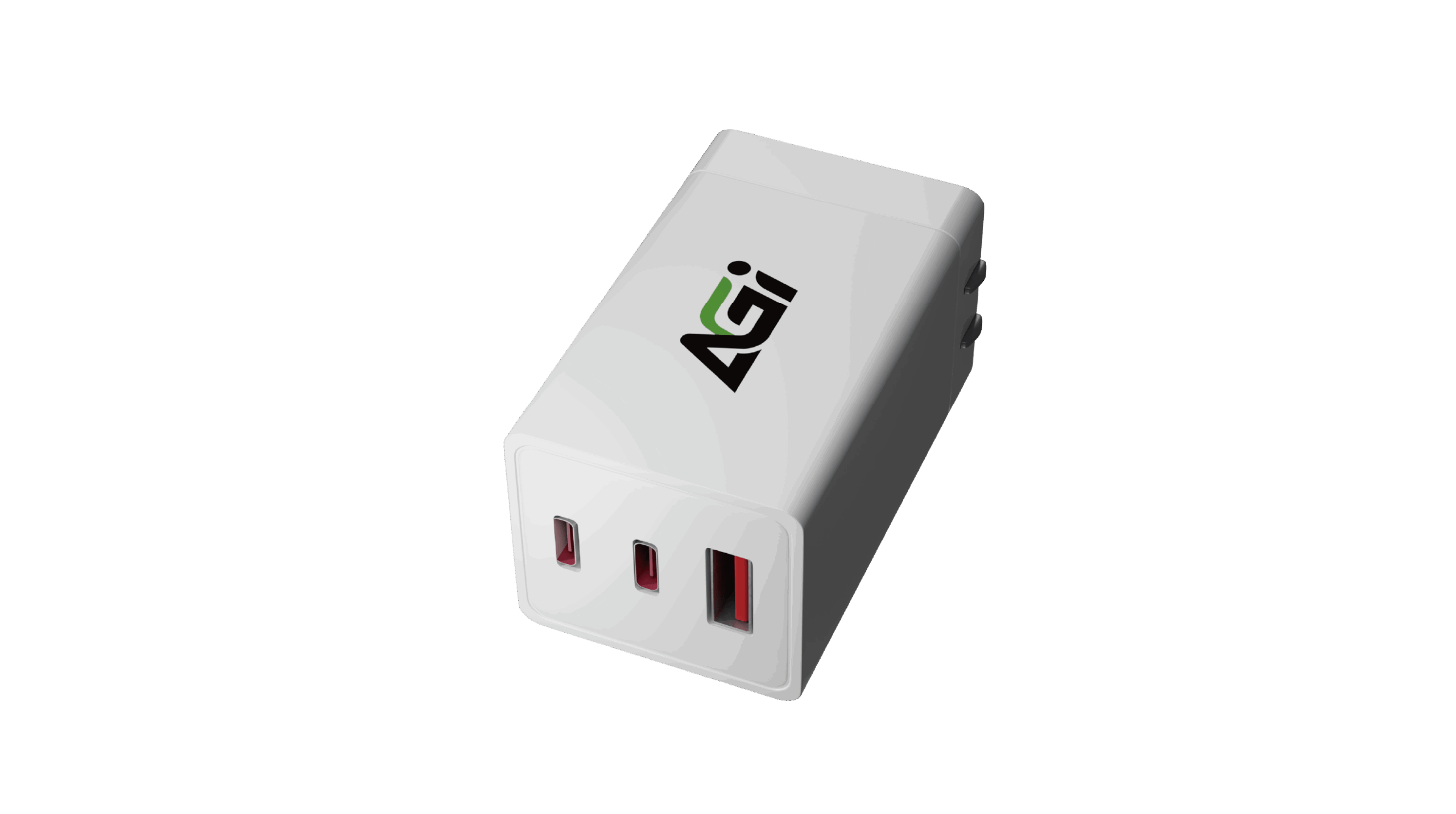
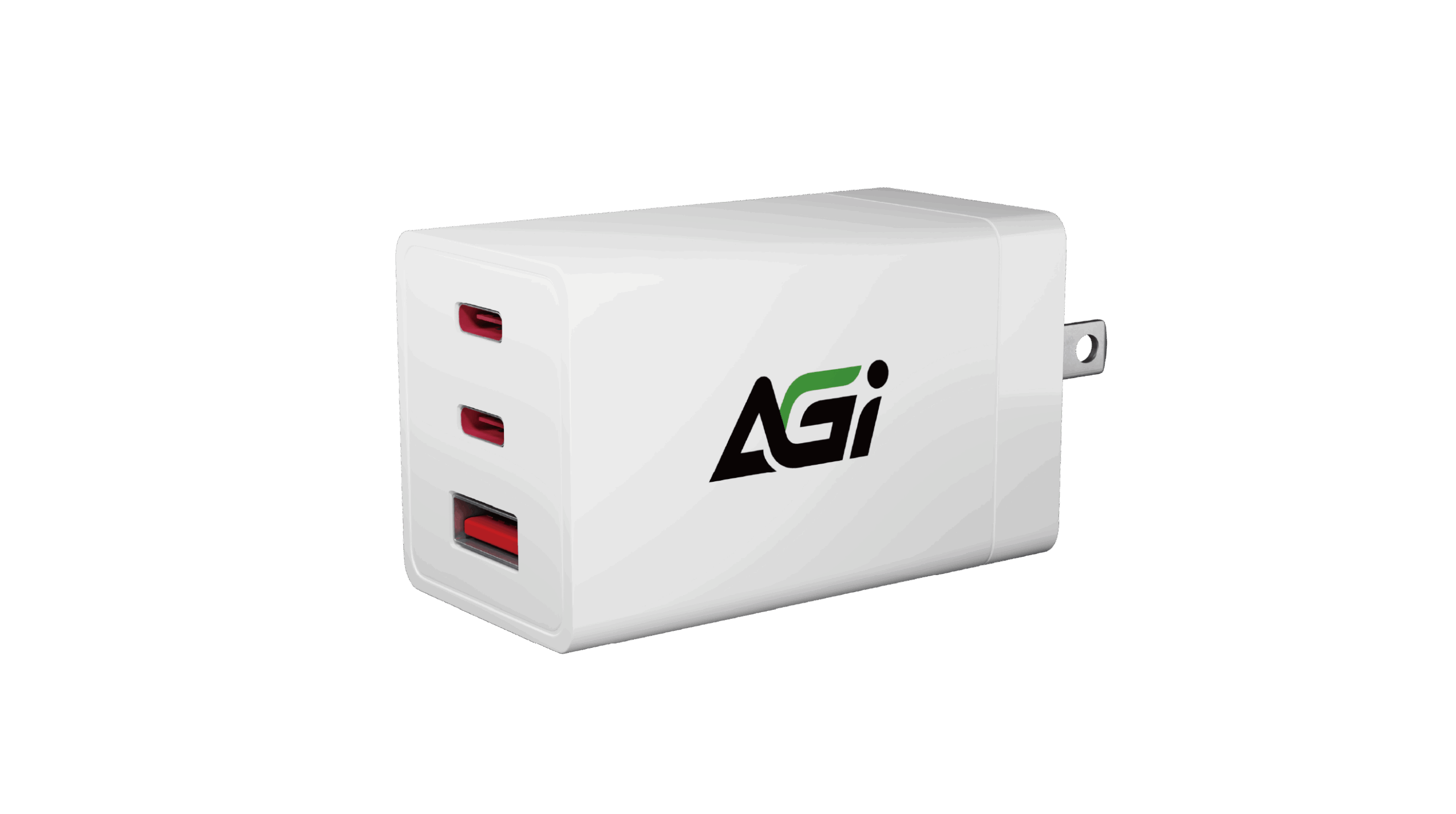
AP138 3合1 67W GaN 充電器
KEY FEATURES
- 相容於智慧型手機、平板電腦、筆記型電腦
- 45 分鐘內將筆電電量從 30% 充至 85%
- 高效穩定的充電效能
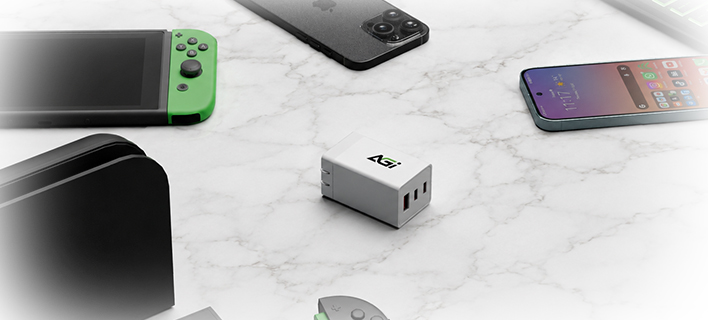
- 輕巧便攜:折疊式插頭設計,適用於日常使用、旅行、商務出差等各種場合
- 內建溫度控制與過充保護系統,確保安全充電

Triple USB

PD/QC Fast Charging

BSMI/ETL/PSE

Laptop Applicable
TF138
經久耐用,滿足日常需求
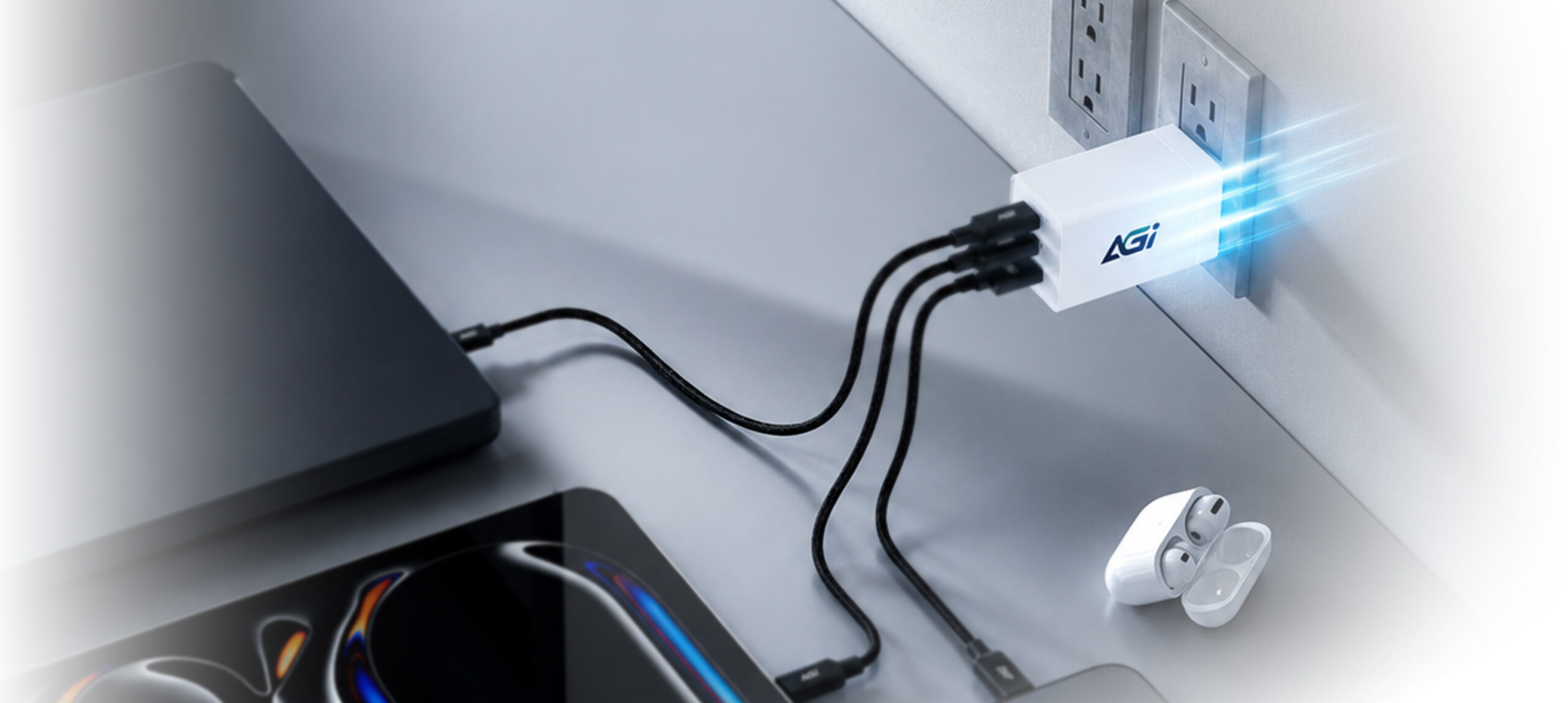
- USB-C & USB-A 端口,全設備適用
AP138
日常使用的強化耐用設計
- 專為應對日常磨損而設計,是充電的可靠選擇。
AP138
67W GaN 高效充電,為多台設備同時供電
- 充電速度可能會因品牌、充電線及電壓而有所不同。
Specifications
尺寸
32*37.1*60.5mm
重量
120g
認證
BSMI/ETL/PSE/CE/FCC
輸入
100V-240V, 50/60Hz, 1.5A
單口輸出
Single C1=C2=67W, A=22.5W
雙口輸出
Double C1+C2=45W+20W C1+A=45W+18W C2+A=18W(5V3.6A)
三口輸出
Tripple C1+(C2+A)=45W+18W(5V3.6A)

Product FAQ
請檢查以下項目:
1. 硬體連接: 請確認資料線、電源線是否接妥,且固態硬碟已正確穩固地插入主機板插槽中。
2. 系統初始化: 在「開始」圖示上按一下右鍵 > 選擇「磁碟管理」> 找到未配置的 SSD > 在上方按一下右鍵 > 選擇「新增簡單磁碟區」以初始化該硬碟。
Windows 11, Windows 10, and modern Linux distributions include native support for PCIe NVMe drives and can be installed directly. Please ensure your motherboard’s BIOS is updated to the latest version and configured to UEFI mode. If the SSD is not detected during the Windows installation process, you may need to download and load the specific storage controller drivers (such as Intel VMD/RST) provided by your motherboard or laptop manufacturer. For further assistance, please refer to the following link or contact Microsoft: https://support.microsoft.com/
請嘗試以下步驟來解決此問題:
步驟 1: 關閉電腦並拔除其他所有的儲存硬碟,僅保留要安裝系統的目標 SSD 連接在主機板上。
步驟 2: 進入主機板 BIOS,還原為預設設定,並確保已開啟 AHCI 與 UEFI 模式。儲存設定後離開。
步驟 3: 重新啟動並進入作業系統安裝程式。在選擇硬碟的畫面中,刪除目標 SSD 上的所有現有磁碟區(分割區),然後繼續完成安裝。
實際效能可能會因您的系統硬體、軟體環境,以及SSD是否作為開機碟(安裝作業系統)而有所差異。這些變動皆屬正常現象。